
 en@netsayfa.com
Contact Us

Our Location
ingilizce adres
Profesyonel servis çözümlerimiz için bize ulaşın
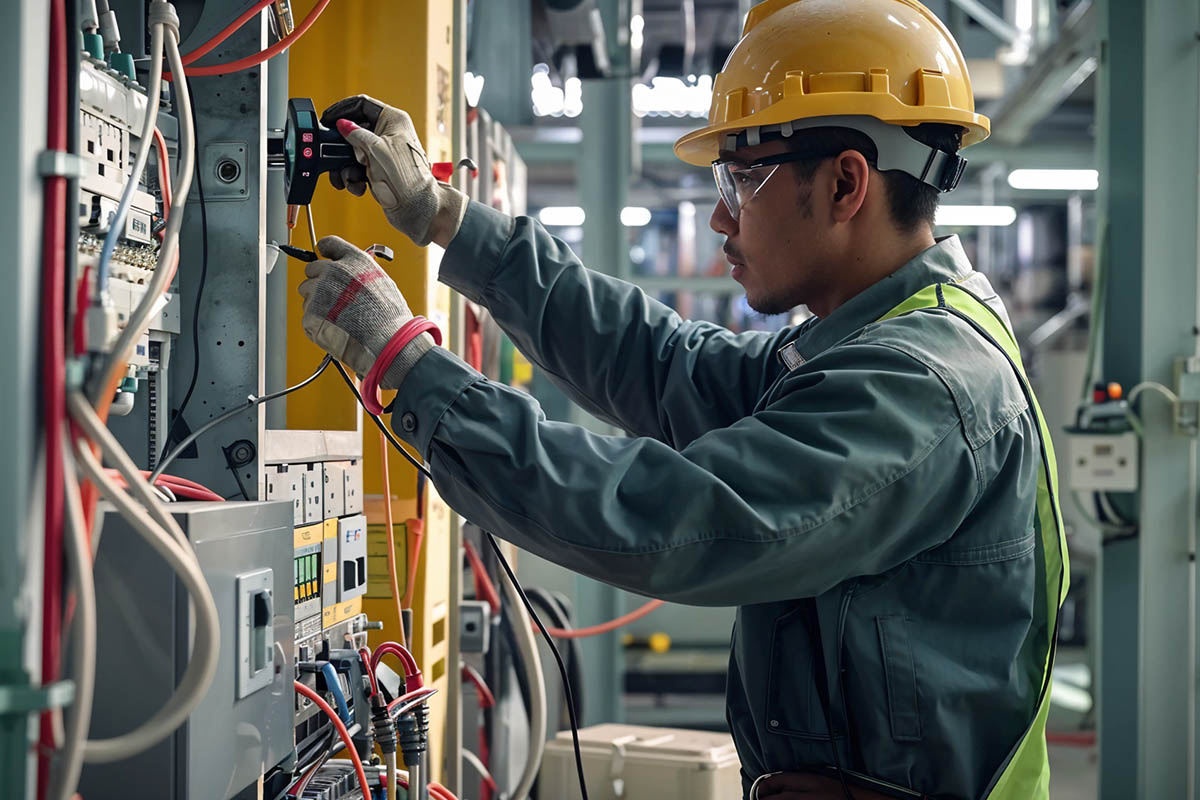
Randevu AlHer endüstri için özelleştirilmiş elektrik hizmetleri




Müşteri memnuniyetimizi yansıtan referanslar
Discover our customers' experiences and opinions.

We were very satisfied with the services we received during our company's digital transformation process. Thanks to your professional team, our website and e-commerce platform were launched in a short time. Your technical support and consulting services were especially excellent.

As a small business, our budget was limited, but the services we received were truly valuable. Thanks to your logo design and corporate identity work, our brand looks much more professional. Thank you!

During the development of our e-commerce site, we worked with a very patient and understanding team. They did an excellent job on payment integrations, inventory management and shipping integration. Our sales increased by 300%!

I am very satisfied with the service I received for my portfolio website. Thanks to the modern and responsive design, my business opportunities have increased. They are especially successful in mobile compatibility.

We had an online ordering system and website made for our restaurant. Especially during the pandemic, our business went very well thanks to this system. Customer satisfaction increased and our orders doubled.

A student management system was developed for our school. Student registrations, grade tracking and parent notification system are now much easier. Our teachers and parents are very satisfied.

Sorunsuz tahminler sadece bir tık uzağınızda
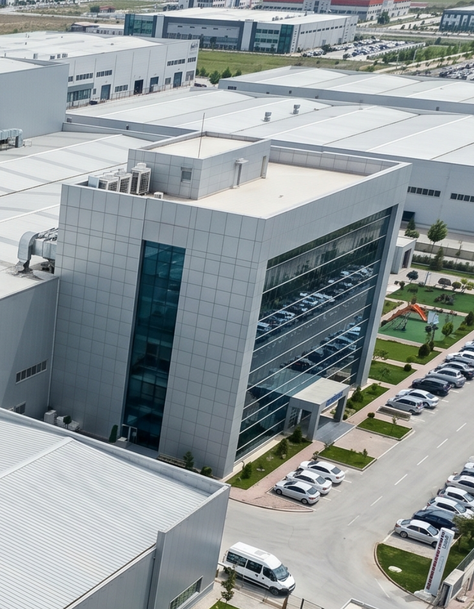
Hedefimiz, çevre bilincine sahip elektrik hizmetleri sağlamada lider olmaktır. Enerji verimli çözümlere odaklanıyoruz.

4 Milyon$+
Teşvik
Hizmetlerimiz Hakkında Sıkça Sorulan Sorular
Hizmetlerimiz hakkında merak ettiğiniz soruların cevaplarını burada bulabilirsiniz. Daha fazla bilgi için bizimle iletişime geçebilirsiniz.

For network printer connection problems:
- Make sure printer is connected to network: Check that printer's Wi-Fi or Ethernet connection is active.
- Check IP address: Learn printer's IP address from printer settings.
- Check firewall settings: Windows Firewall may be blocking printer connection.
- Install printer driver: Install correct driver for network printer. Add printer manually: Add printer manually from Windows Settings > Devices > Printers.
- Test network connection: Test if you can access printer's IP address with ping command.
- Restart printer: Renew network connection by turning printer off and on.
If the printer is not printing, check the following:
- Make sure the printer is on: Check if the power button is lit.
- Check paper and ink/toner: Check if the paper tray is full and ink/toner level is sufficient.
- Check cable connection: Make sure USB or network cable is properly connected.
- Check printer driver: Make sure the printer driver is properly installed in Device Manager.
- Clear print queue: Clear the print queue from Printer Settings.
- Set printer as default: Set the printer as default printer in Windows.
- Restart printer: Turn off and on the printer, if necessary remove and reconnect the power cable.
- Reinstall driver: Remove and reinstall the printer driver.
Striped or blurry printing is usually caused by the following reasons:
- Low ink/toner level: Check ink or toner level, replace if necessary.
- Print head clogged: Perform print head cleaning (from printer settings).
- Paper quality: Using inappropriate paper can cause problems, use quality paper.
- Print head misaligned: Perform print head alignment.
- Ink cartridge faulty: Remove and clean the cartridge, install new cartridge if necessary.
- Printer settings: Set print quality to high in printer settings.
- Toner leakage in laser printers: Check toner cartridge, clean if there is leakage.
Overheating is usually caused by cooling system problems. Solution suggestions:
- Clean fans and coolers: Dust accumulation can prevent fans from working. Turn off the computer and clean the fans and coolers.
- Renew thermal paste: The thermal paste on the processor may have dried out, renew it.
- Check ventilation holes: Make sure the computer's ventilation holes are open.
- Place computer on a flat surface: Don't place laptop on soft surfaces (bed, couch), it blocks airflow.
- Check fan speed: Check fan speed settings in BIOS, increase if necessary.
- Upgrade cooler: If there is an old or insufficient cooler, install a better cooler.
- Use laptop cooling pad: If you're using a laptop, you can use an external cooling pad.
Overheating can cause hardware damage, so it's important to fix the problem.
Blue screen error (Blue Screen of Death - BSOD) usually indicates a serious system error. Things you can do:
- Note the error code: Note the error code appearing on the blue screen (e.g., 0x0000007E) and research it.
- Uninstall recently installed programs: The problem may be caused by a program you recently installed.
- Update drivers: Especially update graphics card and chipset drivers.
- Test RAM: Test your RAM using Windows Memory Diagnostic tool.
- Check disk errors: Check hard disk errors with CHKDSK command.
- Update Windows: Install all Windows updates.
- Check Bios/UEFI settings: If you're overclocking, return to default settings.
If the problem persists, you may need to reinstall Windows to repair system files.
